
Android Debug Bridge, usually called ADB, can help a production team inspect an Android device it owns or is authorized to administer. It is useful for connection diagnostics, version checks, and controlled testing. It does not turn a phone into an unlimited YouTube management interface or remove the account permissions and platform rules that apply to its use.
Start with a specific device problem. Perhaps the workstation cannot see the phone, an application behaves differently after an update, or a tester needs to capture an approved diagnostic record. A narrow task is easier to complete and review than a broad script that changes settings without a clear purpose.
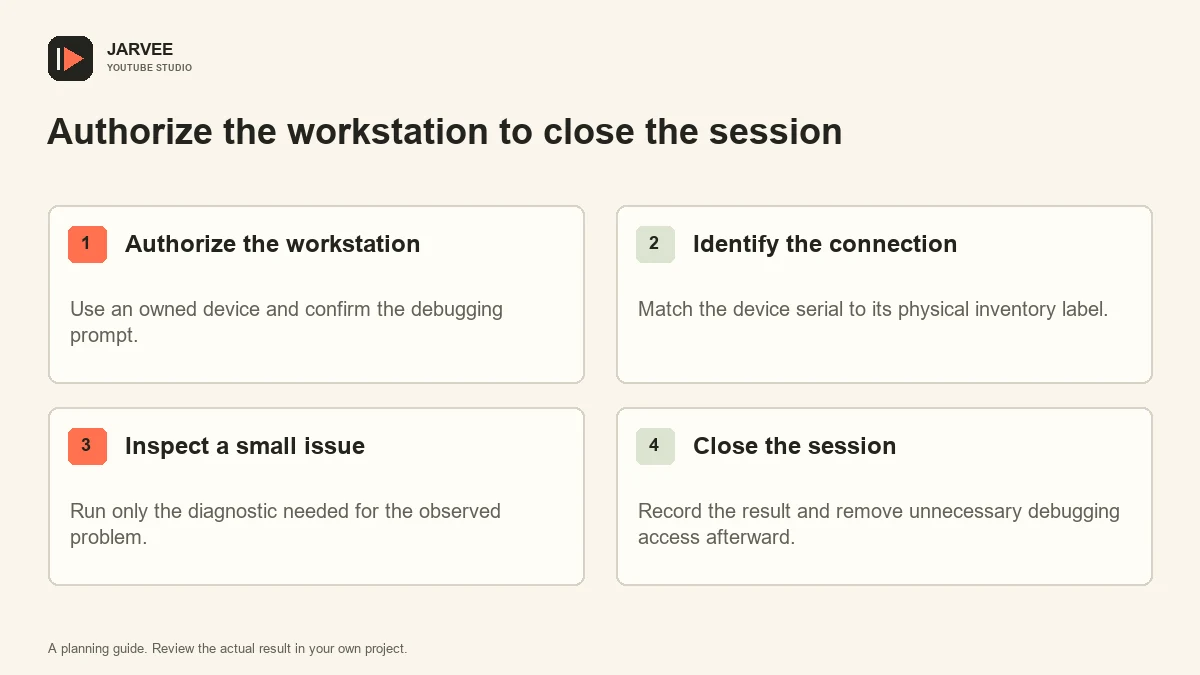
Define ownership and the intended task
Record who owns the phone, who operates the workstation, and what they are allowed to inspect. A company phone may contain customer messages, account information, or personal material from previous use. Administrative access is powerful, so permission to test one application should not silently become permission to collect everything on the device.
Use an inventory label and a task record. Identify the physical device, relevant account or test context, expected result, and any data the test will create. For a simple connection problem, that record can be brief. It should still let another person understand why debugging was enabled and when access can be removed.
Separate device administration from channel authorization. A phone connected by USB does not prove that its operator has permission to publish to every signed-in channel. Use the platform’s appropriate account and role controls for editorial work, and verify the intended channel before any action that changes public content.
Establish a deliberate USB connection
Android’s ADB documentation explains debugging setup, host authorization, and device selection. Use the official Platform Tools and the instructions applicable to your device. Confirm any on-device authorization prompt yourself rather than accepting an unfamiliar workstation automatically.
Connect one phone first. Check whether the cable supports data, whether the port is functioning, and whether the device is unlocked when authorization requires it. A charging icon alone does not establish a data connection. Avoid changing several cables, ports, drivers, and settings at once, because that makes the cause harder to identify.
A basic inventory command is adb devices -l. Compare its result with the phone in front of you. If multiple devices are connected, target the intended serial explicitly for later commands. Never assume that the first listed device is the one an operator meant to inspect.
Diagnose the connection state
An absent device, an unauthorized device, and an offline device are different observations. Record the exact state and any visible prompt. For an absent device, inspect the physical data path. For an authorization issue, review the host prompt and approved workstation. For an intermittent connection, test one known-good cable and port before expanding the investigation.
Keep a small troubleshooting matrix with the phone, cable, port, host, and observed result. Swap one component at a time. If the issue follows one cable, label that cable for inspection rather than returning it to the general supply. If it follows the phone, check device-specific documentation and configuration.
Avoid factory resets, application-data deletion, or broad permission changes as first-line fixes. These actions can destroy useful context and create account recovery work. Prefer reversible diagnostics and preserve the observation that led to each next step. Escalate a destructive repair only when its scope and consequences are understood.
Collect only the information needed
A version check may be enough to explain a compatibility difference. A screenshot may help document a layout issue, but it can expose account names, notifications, or private content. Review what will be captured and store it in the approved location. Do not attach an unrestricted device dump to a routine ticket merely because the tool can produce one.
When a diagnostic command may change device state, read its official documentation before using it. Distinguish inspection from mutation in the task record. A test that installs a package or changes a setting needs a rollback plan, while a read-only inventory check may only need a note of the result.
The site’s activity review workflow offers a useful operational principle: compare intended actions with observed outcomes. Apply that principle to diagnostics by recording the command’s purpose, the relevant result, and what conclusion the result actually supports.
Keep YouTube actions within their proper controls
Use the supported YouTube or Studio interface for the publishing task and the channel access granted to the operator. USB debugging does not replace account verification, channel permissions, upload limits, or API project rules. A different interaction path does not create permission to exceed a restriction imposed on the underlying account or service.
Do not use repetitive gestures to manufacture views, comments, or other engagement as evidence of real audience interest. Device authenticity does not make every activity appropriate. For production planning, keep device tests separate from audience measurements so an internal inspection cannot be mistaken for organic performance.
Our guide to separate video and Shorts workflows can help identify the publication checks that belong outside the device diagnostic. A successful USB connection is not proof that a video has the correct framing, rights, metadata, or visibility.
Close the diagnostic session cleanly
Record the resolution and any remaining issue. If a cable was replaced or an authorization was revoked, include that detail so the next operator does not repeat the investigation. Remove temporary captures and test files according to the team’s retention rules, preserving only the evidence needed for the task.
Disable debugging or revoke unnecessary host authorization when the device no longer needs that access. Keep the workstation protected and the phone physically controlled. A routine diagnostic process should end with a known state, a clear result, and no unexplained administrative access left behind.
Example: a phone charges but is not listed
In an illustrative investigation, the operator first records that the phone charges while the workstation’s device list remains empty. They test a known data-capable cable on the same port, then inspect the device’s connection and debugging state. If the replacement cable resolves the issue, the finding concerns that physical path. It does not prove anything about the signed-in account or YouTube’s security systems.
The closing note identifies the cable removed from service, the device checked, and the successful connection state. The operator then returns to the original production task and verifies its own requirements. Keeping these conclusions separate prevents a simple cable repair from being reported as an account-access fix or a platform-permission change.
KEEP EXPLORING
Put the workflow in context.
See the five YouTube tools available in SMTasker and choose the actions that fit your account.
Explore the tools