
A mobile connection can fail for ordinary reasons: weak signal, exhausted data allowance, a captive portal, a local network policy, or an account issue. Diagnose the symptom before buying a proxy or assuming the channel has an “IP ban.” An address alone does not reveal the full reason an application cannot connect.
Mobile carriers, home broadband, business networks, and privacy services have different operational characteristics. None provides a guarantee of account trust or immunity from enforcement. Choose a connection for legitimate availability, privacy, and administrative needs, then use a consistent troubleshooting process when something goes wrong.
Separate three kinds of problem
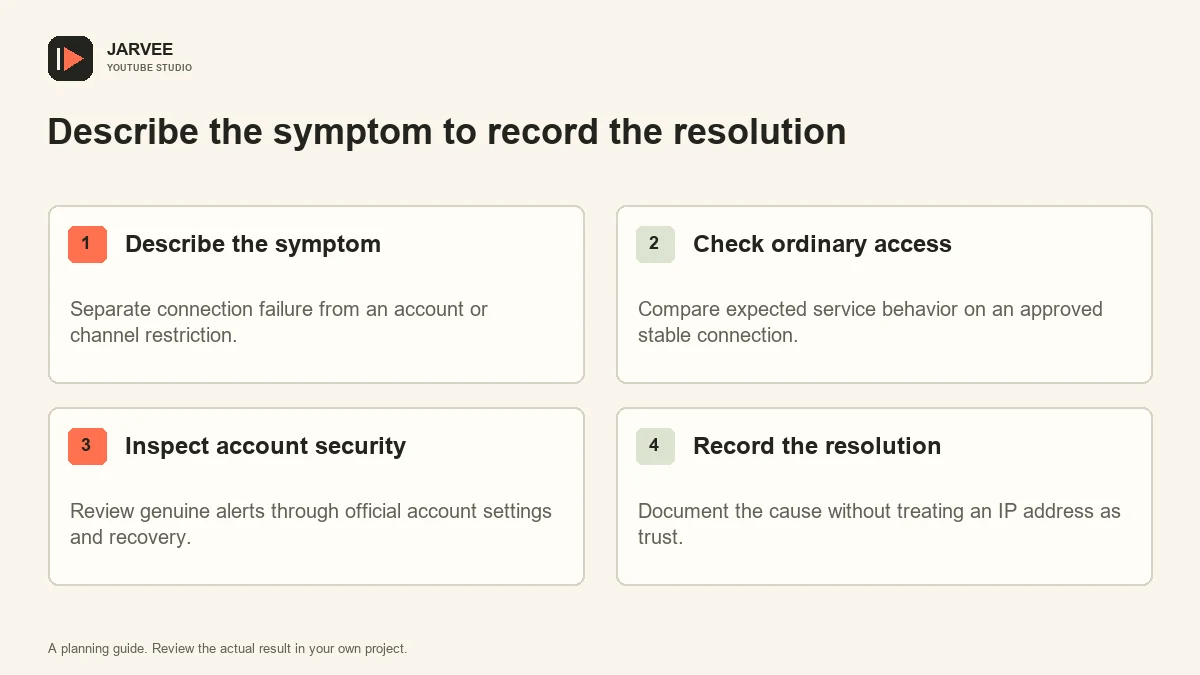
First, a connectivity problem prevents the device from reaching a service reliably. Second, an authentication problem prevents the user from proving access to an account. Third, a channel or feature restriction limits an action after sign-in. These can look similar to an operator, but changing networks is not an appropriate universal remedy.
Write the exact message and the action that triggered it. “The upload stopped” is less useful than a record of whether the app lost connectivity, processing failed, or the account displayed a limit. Capture only the necessary screen area and avoid exposing personal information in a shared support ticket.
Check whether other ordinary services work on the same device. This can help distinguish a broad connection issue from a service-specific issue, though it does not identify every cause. Keep the observation narrow: one working website does not prove the entire network is healthy for a large video transfer.
Test the simplest approved connection
Confirm that mobile data is enabled, the device has service, and the plan permits the intended use. Inspect any operating-system data restriction or business network configuration relevant to the application. Use the manufacturer’s and carrier’s instructions for settings that differ across models and regions.
If permitted, compare the same ordinary task on a stable approved Wi-Fi connection. Change one condition at a time and record the result. A successful comparison can narrow the investigation, but it does not establish that the carrier is malicious or that the prior address was blacklisted.
Do not repeat uploads blindly after an uncertain failure. Inspect Studio or the relevant content list to see whether the transfer produced a draft or partially completed item. A retry without checking can create duplicates and make the operator unsure which version belongs in the publication schedule.
Evaluate network services by real requirements
If an organization uses a VPN or another managed network service, document why it is needed, who administers it, and what data it can observe. Consider availability, support, privacy terms, and compatibility with the organization’s security policy. A marketing label such as “residential” does not answer those questions.
Avoid choosing a service based on a promised trust score or a claim that it makes automated activity undetectable. Such claims do not establish how Google evaluates an account or a specific action. They can distract from the real issue and encourage unnecessary changes to a connection that was not causing the problem.
Keep credentials and recovery information out of untrusted network-management tools. A connectivity provider should not need your Google password, verification code, or session files to route ordinary traffic. If a workflow asks for those items, stop and clarify its purpose through the responsible security owner.
Handle genuine security prompts through the account
Google’s account security guidance recommends reviewing recovery options, security recommendations, and protective sign-in methods. Use official account settings to inspect an alert. Do not treat an unexpected prompt as a technical obstacle to bypass through repeated address changes.
If you recognize the activity, follow the legitimate verification path available to the account owner. If you do not recognize it, secure the account and review access. Keep any investigation record separate from secret recovery material. Backup codes and authentication tokens do not belong in a routine network ticket.
For team work, use appropriate channel permissions instead of sharing a master account across many operators. A clear identity and access process makes it easier to understand who performed an action. A new connection cannot repair a poorly managed authorization model.
Keep production checks separate from connectivity checks
Once access works, verify the actual publication state. Confirm the intended channel, video identity, visibility, and any remaining processing task. Network recovery does not mean the upload or schedule is correct. Our guide to separate video and Shorts workflows can help define that second review.
Use the site’s activity review guide to record the task and observed outcome. A concise incident note should identify the affected device, connection type, exact symptom, tests performed, and final state. Avoid collecting full addresses or personal details when they are unnecessary for the diagnosis.
If the issue remains intermittent, collect a small, relevant sequence of observations rather than changing services after every failure. Time, signal context, transfer size, and application state may reveal a pattern. Share the minimum useful evidence with the appropriate carrier, administrator, or official support route.
Define a stable operating arrangement
Choose a primary approved connection and a documented fallback for genuine outages. Make the fallback’s purpose clear: continuity of authorized work. It should not be used to evade a service limit, hide policy violations, or create the appearance of unrelated users.
Review the arrangement when the team changes location, devices, or service plans. Confirm who pays for data and who can modify network settings. Operational clarity reduces surprises such as an upload consuming a personal allowance or a device being left on a configuration nobody understands.
A useful network diagnosis ends with an identified symptom, a supported explanation where possible, and a known account state. It does not need a story about perfect carrier trust. Reliable connections and legitimate access are practical goals you can verify directly.
Prepare a useful support handoff
If the team cannot resolve the issue, provide the responsible support contact with the device model, relevant software version, approximate time, connection type, and exact error. Describe which ordinary comparison worked and which failed. Avoid sending passwords, account recovery material, or a full history of unrelated browsing.
State the remaining question clearly. “Transfers fail on this approved connection but complete on the fallback” is actionable. “Our IP is bad” is a conclusion the evidence may not support. A precise handoff lets the next person investigate the real behavior and reduces the temptation to replace infrastructure without understanding the cause. Record their findings before closing the incident.
KEEP EXPLORING
Put the workflow in context.
See the five YouTube tools available in SMTasker and choose the actions that fit your account.
Explore the tools